Spot Scam Emails Fast: Protect Your Email Privacy
Scam emails are fraudulent messages built to steal credentials, money, or to deliver malware. Spotting them in seconds can prevent financial loss and protect your privacy. This guide gives quick visual and technical checks you can use on desktop or mobile to spot phishing tactics like domain spoofing, dangerous links, unsafe attachments, and social-engineering hooks. You’ll get the most reliable red flags, step‑by‑step link and attachment checks, how to verify sender authenticity using headers and authentication signals, and immediate remediation and reporting steps to stop an attack. The guide also covers current trends such as AI-assisted phishing and QR-code scams, plus practical defenses like SPF/DKIM/DMARC basics, multi‑factor authentication (MFA), and simple sandboxing practices. Read on for fast lists, practical how‑tos, and compact reference tables that help you decide in seconds and escalate safely when needed.
What Are the Key Signs of a Scam Email?
Most scam emails show a handful of consistent indicators: mismatched sender addresses, urgent or threatening language, odd formatting or poor grammar, unexpected requests for sensitive data, and suspicious links or attachments. Focusing on these elements—sender address, headers, hyperlinks/URLs, attachments, and display name—lets you triage messages quickly and reduces the chance of falling for social engineering.
The fastest routine is simple: check the sender and domain, read the first two lines for urgency or requests, and hover or long‑press links to preview destinations. Combining these checks gives you a quick, reliable verdict. Below are the top visual cues to scan in the first five seconds, followed by a compact reference table with each indicator and the immediate action to take.
Common visual signs to scan immediately:
- Mismatched Sender Domain: The display name claims a bank or service but the actual email domain is different.
- Urgent Requests for Money or Info: Immediate payment or credential demands, often with a tight deadline in the opening lines.
- Strange Attachments or Links: Unexpected files, or link text that doesn’t match the real destination.
Stop on these surface clues first — they tell you when to run deeper technical checks like header inspection and SPF/DKIM/DMARC verification, which we cover next.
This compact reference maps visible signs to the right one‑line remediation.
| Indicator | What it Looks Like | Immediate Action |
|---|---|---|
| Suspicious sender domain | Display name matches a brand but the email comes from a public or look‑alike domain | Do not reply; reveal the full address and compare it to the official domain |
| Urgent or threatening tone | "Act now or your account will be closed" or legal‑sounding threats | Pause and verify via known channels; do not click links |
| Poor grammar / branding mismatch | Typos, low‑quality logos, or inconsistent footer details | Treat as suspicious and cross‑check sender and links |
| Requests for sensitive data | Asks for passwords, SSNs, or payments by email | Never provide info by email; contact the organization using trusted channels |
| Unexpected attachments / links | .exe, .zip, or anchor text that doesn’t match the URL | Do not open; inspect the link target and scan attachments safely |
This table helps you match a visible sign to the correct immediate response, which leads into exact techniques for inspecting links and attachments.
How to Identify Suspicious Sender Addresses and Domain Spoofing
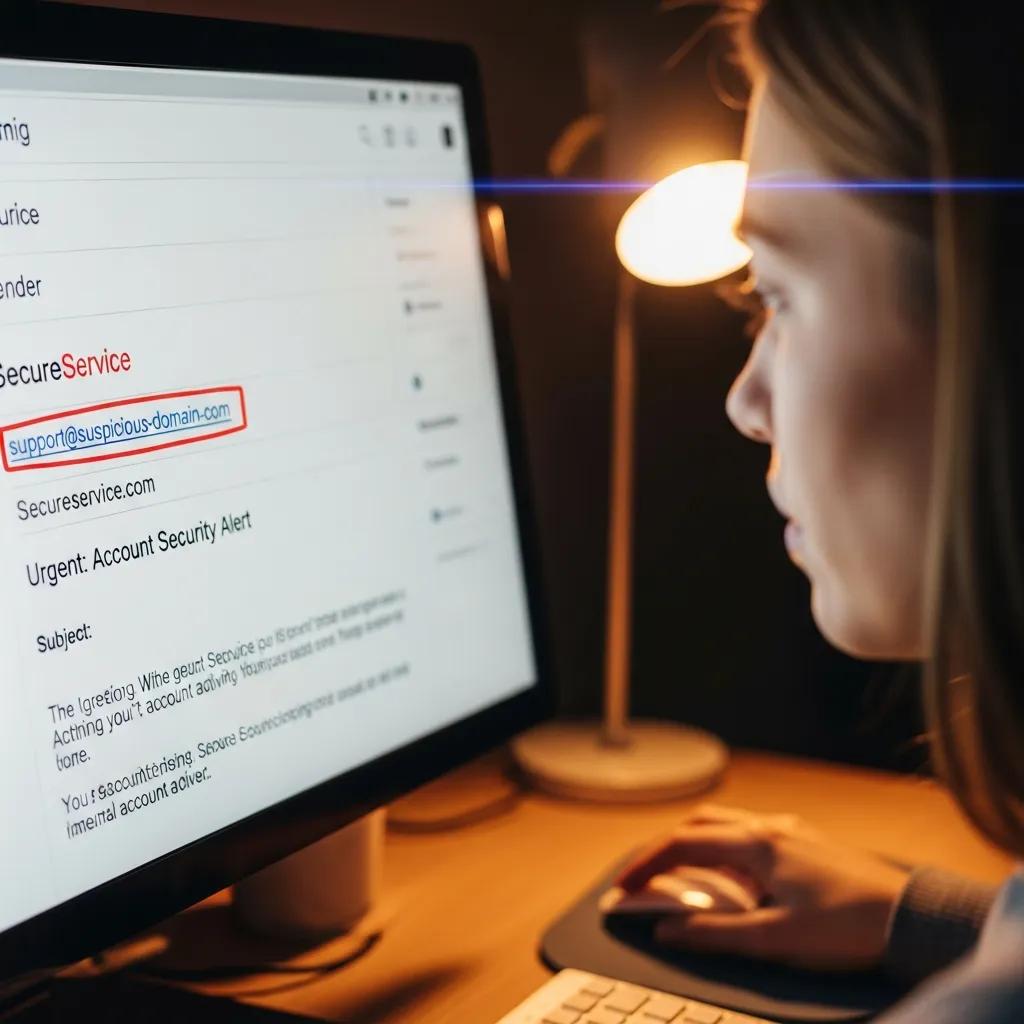
Scammers often rely on display‑name tricks: the friendly name looks legitimate while the envelope‑from uses a different domain. Knowing the difference between the display name and the real email address is critical.
Reveal the full address in your client: hover or click the sender’s name on desktop, or tap‑and‑hold on mobile. Confirm the registered root domain and the top‑level domain — attackers use homoglyphs (similar‑looking characters) to mimic real domains.
Watch for subdomain tricks where attackers prepend a brand to an unrelated domain (for example, ). Parse the right‑most registered domain to determine true ownership.
If the address looks like a one‑off or uses a public provider for corporate messages, treat it as suspect and verify via an independent channel. Confirming sender authenticity is your first step before inspecting links or attachments.
What Are the Common Red Flags in Email Content Like Grammar and Urgency?
Content‑based red flags include urgent deadlines, unexpected attachments, credential requests, and an unusual tone — either too formal or too casual. These cues often combine with other signals to indicate phishing.
Typical urgent phrases include "final notice," "immediate action required," or "verify your account within 24 hours." Paired with payment or login requests, these lines aim to short‑circuit your critical thinking.
Poor grammar and inconsistent branding remain useful clues, but AI can now produce near‑perfect text — so don’t rely on grammar alone. Always pair content checks with technical verification like domain and header inspection.
Also look for generic salutations like "Dear Customer," vague account references, and signature blocks that lack verifiable contact details — these are additional warning signs.
Use content cues to prioritize technical checks rather than as definitive proof, which leads into link and attachment inspection techniques next.
How Can You Detect Malicious Links and Unsafe Attachments in Emails?
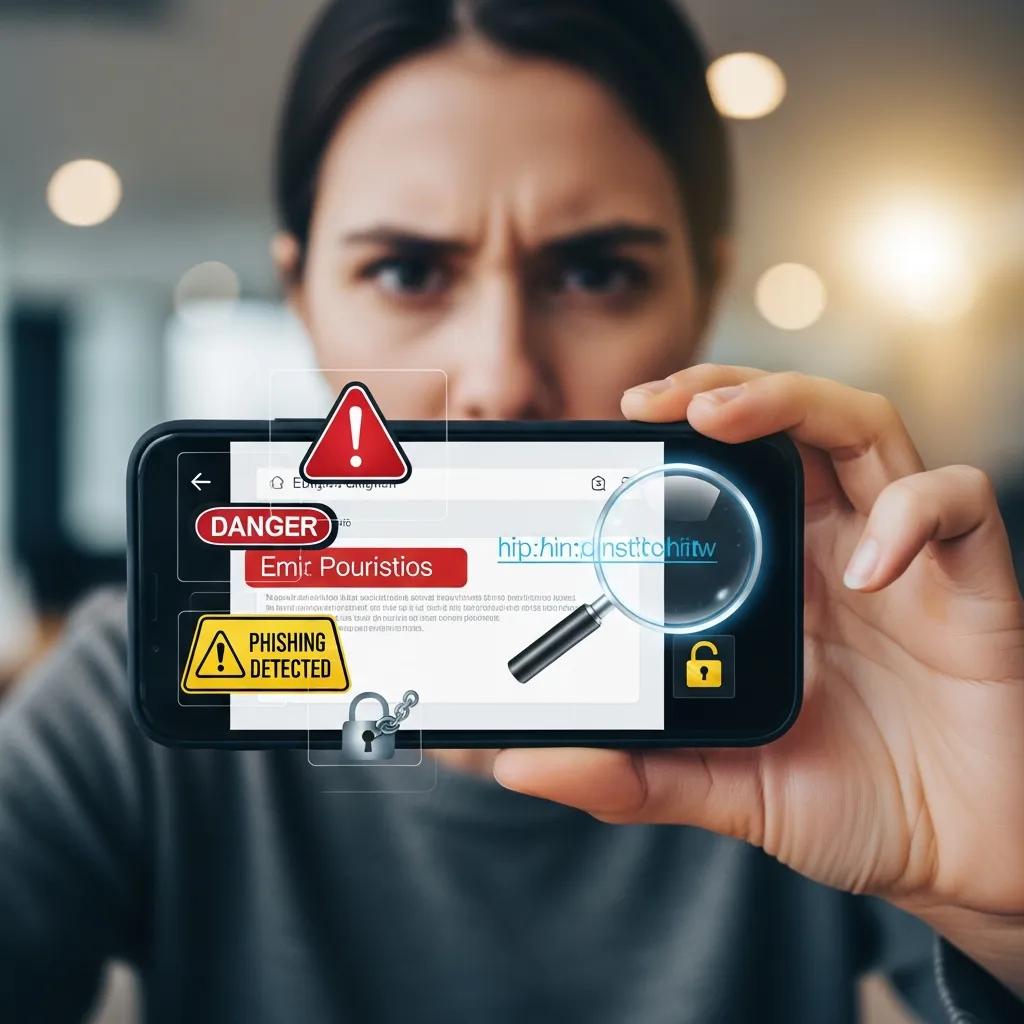
Detecting dangerous links and attachments requires a short, repeatable routine: reveal link targets without clicking, examine URL structure for redirects or look‑alikes, and identify high‑risk filetypes before opening attachments.
Links are a common delivery method for credential‑harvesting pages or redirect chains that hide the final destination. Attachments often carry malware in macro‑enabled Office files or nested archives with executables.
On desktop, hover to preview a link; on mobile, tap‑and‑hold. Look for IP‑based URLs, unexpected top‑level domains, or URL shorteners — expand them with a safe preview tool before following. For attachments, treat executables and script files as high risk and prefer preview or sandbox analysis.
Quick steps to inspect links and attachments:
- Hover or long‑press links: Reveal the real target before clicking.
- Check for redirection chains and IP addresses: Avoid links that point to numeric IPs or unfamiliar TLDs.
- Identify risky attachments: Do not open .exe, .js, .scr, or macro‑enabled Office files; use preview or a sandbox instead.
Doing these checks immediately reduces the risk of malware or credential theft. The table below compares common link and attachment traits with how attackers typically use them.
| Link/Attachment | Notable Attribute | Risk / How it's used |
|---|---|---|
| Hyperlink with different anchor and href | Anchor reads "bank.com" but href points to an unrelated domain | Redirects to a credential‑phishing site or hides the final landing page |
| IP‑based URL | URL uses a numeric IP instead of a domain name | Used to hide hosting and bypass basic domain checks |
| URL shortener | Shortened links obscure the final destination | Used to conceal malicious landing pages |
| Macro‑enabled Office (.docm, .xlsm) | Contains executable macros | Runs scripts or installs malware when macros are enabled |
| Compressed archive with nested executables (.zip/.rar) | Archive contains .exe or script files inside | Bypasses simple attachment filters and drops payloads |
This comparison shows why links and attachments need different handling and why technical checks matter before interacting. Next we cover desktop and mobile techniques for revealing link targets.
How to Hover Over Links to Verify Real URLs and Spot Phishing Sites
On desktop, hover the cursor over link text to reveal the full target in the status bar or a tooltip. Right‑click to copy the link address, then paste it into a text editor to inspect redirection chains or suspicious segments.
On mobile, tap‑and‑hold the link to preview the destination or use the device’s link‑preview feature. If you’re unsure, don’t tap — open your browser manually and navigate to the official site.
Watch for mismatched root domains, odd subdomains, embedded credentials, or query parameters unrelated to the claimed sender. Short, clean domain names usually indicate legitimacy; long, convoluted URLs are suspect.
Quick red flags include numeric IP addresses, unusual top‑level domains that don’t match the brand, and multiple redirect services. If you see any of these, don’t follow the link — verify the sender out of band first. These reveal steps also prepare you to handle attachments safely, discussed next.
Which Attachments Are Commonly Used to Deliver Malware?
Attackers commonly weaponize executable filetypes, script files, compressed archives with hidden executables, and macro‑enabled Office documents. Treat these file types as high risk by default.
Examples include , , , , and nested within or . Macro files like or can run code when macros are enabled. Double‑extension tricks like "invoice.pdf.exe" are common attempts to deceive recipients.
Handle attachments safely: open them in preview mode when possible, scan with antivirus or sandbox tools before executing, and forward suspicious samples to your security team instead of opening them. Maintain a personal whitelist of acceptable file types (for example, PDF or trusted images) and avoid any executable or script without verification. Safe handling reduces infection risk and complements link checks when validating a message.
What Social Engineering Tactics Do Scam Emails Use to Manipulate You?
Scam emails exploit psychological levers — urgency, authority, scarcity, and curiosity — to short‑circuit rational scrutiny. Recognizing these tactics gives you a moment to pause and verify.
Attackers impersonate executives or trusted brands to exploit authority, set tight deadlines or threats to create urgency, and use sensational or mysterious content to provoke curiosity clicks. Each tactic makes you less likely to run technical checks.
Knowing these habits lets you ask focused verification questions and apply steps like contacting the sender through verified channels or checking email authentication signals. Below is a short list of common manipulation strategies and why they matter.
Common social engineering tactics used in scam emails:
- Urgency and Fear: Threats of account closure or financial penalties to force quick action.
- Authority Impersonation: Posing as executives, banks, or government agencies to exploit trust.
- Scarcity and Opportunity: Limited‑time offers or prizes prompting impulsive clicks.
- Curiosity Hooks: Vague or mysterious subject lines and attachments that encourage opening.
Recognizing these hooks lets you stop and run verification steps instead of reacting — especially important when the email includes spoofed sender details or malicious links.
How Does Urgent or Threatening Language Signal a Scam Email?
Urgent or threatening language compresses decision time and increases the chance you’ll comply. Phrases like "immediate action required" or "final notice" are classic scam triggers — treat them with caution.
If you see urgent language, run quick sanity checks: verify the sender domain, avoid clicking links, and contact the organization using independently verified contact information.
Ask simple verification questions the legitimate sender can answer out of band — transaction IDs, partial account numbers, or recent interactions — and be skeptical if the message resists or tries to redirect you to a login page.
Document the message and escalate to your security team or the company’s verified support channel. Treating urgency as a manipulation tactic helps you spot other signals like generic greetings and unsolicited requests.
Why Are Generic Greetings and Requests for Personal Information Red Flags?
Generic greetings such as "Dear Customer" and vague references to "your account" suggest the sender doesn’t have personalized account context and are common in mass phishing campaigns.
Legitimate organizations usually include identifiable details — a partial account number, the last transaction amount, or your registered name. Scams avoid specifics to reduce the chance of being wrong.
Requests for sensitive information (passwords, full Social Security numbers, or payment details) via email are almost always fraudulent. Secure services don’t ask for this data over unencrypted email.
If personal information is requested, verify through the organization’s official app or phone number and refuse to provide credentials via email. This simple rule reduces exposure to credential theft and identity fraud.
How Do You Verify If an Email Is Legitimate Before Responding?
Verifying an email before responding mixes technical checks (headers and authentication) with practical confirmation steps (contacting the organization via official channels) to produce a reliable assessment in minutes.
Email authentication — SPF, DKIM, and DMARC — gives signals about whether the sending server is authorized by the domain owner. Header fields like From, Return‑Path, and Received help you trace the message path; together they reveal spoofing or third‑party relay abuse.
After checking headers and authentication, verify any requests by contacting the organization using phone numbers or URLs you obtain independently — not the links or numbers in the suspicious email.
| Verification Step | Tools / Methods | What to Expect (Legitimate vs Scam) |
|---|---|---|
| Check header fields | Email client header viewer or online header analyzer | Legit: consistent originating domain and matching Return‑Path; Scam: mismatched domains or unusual Received hops |
| Inspect SPF/DKIM/DMARC | Authentication results in headers or online tools | Legit: pass or relaxed pass; Scam: fail, neutral, or missing records |
| Verify links without clicking | Hover, copy link, or use a safe preview service | Legit: link matches official domain; Scam: redirects or mismatched root domain |
| Contact organization out of band | Official phone number or verified app | Legit: confirms the message; Scam: cannot validate or insists you reply to the email |
Use this checklist to reduce false positives and escalate only verified threats to security teams. Next we explain how to check headers and contact organizations safely.
What Steps Should You Take to Check Email Headers and Sender Authenticity?
Open the message’s full headers in your client (Gmail, Outlook, or mobile) and inspect key fields: From, Reply‑To, Return‑Path, Received, and Authentication‑Results (SPF/DKIM/DMARC).
Read the Received chain right‑to‑left to find the originating IP and verify whether the sending server belongs to the claimed domain. Use header analyzer tools if you want automated help, but the basic checks — a matching Return‑Path and a pass in Authentication‑Results — are fast and effective.
If SPF, DKIM, or DMARC fail or are missing, treat the message as higher risk and avoid interacting until you verify through another channel.
Annotating suspicious header anomalies and forwarding them to IT or security provides evidence for escalation and supports threat intelligence. That prepares you to contact organizations directly for confirmation.
The technical metadata in email headers is vital for verifying authenticity and spotting fraudulent communications.
Forensic Analysis of Email Headers for Authenticity Verification
This paper examines how analyzing email headers — the technical metadata that records sender details, transmission path, and originating software — helps verify authenticity and identify fraudulent messages.
How Can Contacting the Organization Directly Help Confirm Email Legitimacy?
Contact the organization using phone numbers or portal links you obtain independently to confirm whether the message came from them. This avoids replying to a possibly spoofed address.
Use official channels listed on the organization’s verified site or your account page. Provide specific message details — subject line, date/time, and message ID — to help their investigation. Ask whether they sent the email and whether any account action is required.
Sample verification script: say you received an email requesting action, summarize the request without sharing sensitive data, and ask if it originated from their systems. Never read back passwords or authentication codes.
If the organization confirms fraud, follow their reporting steps and consider changing passwords and enabling MFA as part of remediation.
What Should You Do Immediately After Spotting a Scam Email?
When you spot a scam email, first contain the risk: don’t click links or open attachments, report the message to your email provider and organization, block the sender if appropriate, and begin remediation — password resets and malware scans.
Determine whether any sensitive information was exposed. If so, change affected passwords and enable MFA to reduce account‑takeover risk. If credentials were shared, assume compromise and follow your incident‑response procedures.
Reporting helps providers and authorities track campaigns and protect others. Forward phishing emails to the provider’s report address or your internal security team and include headers if requested.
The short ordered steps below summarize the initial actions to limit damage and start recovery.
- Do not click or reply: Stop interacting with the message or its links.
- Report to provider and security: Use your email client’s report function and notify internal IT or security.
- Contain and remediate: Change passwords, enable MFA, and run a full antivirus/malware scan.
Acting quickly narrows the attacker’s window and gives investigators the evidence they need.
Why Is It Important Not to Click or Respond to Suspicious Emails?
Clicking links or replying confirms an active address to attackers and can trigger malware downloads, credential submission, or further social‑engineering that leads to loss or data theft.
A reply can invite targeted follow‑ups — spear phishing or vishing calls — because it signals the account is monitored and exploitable.
Instead of responding, capture the message details, forward it to your provider’s phishing report address or internal security, and isolate any device that may have interacted with the message for a scan.
Non‑interaction preserves evidence and prevents further compromise while enabling security teams to analyze indicators of compromise and update defenses.
How and Where Can You Report Scam Emails to Protect Yourself and Others?
Report scam emails to your email provider, government cyber agencies, and the impersonated organization to help block campaigns and protect the wider community. Use built‑in "report phishing" features in email clients and forward full headers to security teams when requested.
In an organizational incident, file a ticket with IT or security and include headers, timestamps, and any clicked links or opened attachments to speed triage and containment.
When notifying authorities or consumer protection bodies, provide a clear timeline and copies of the offending email. Accurate reports support takedowns and strengthen collective threat intelligence.
Prompt reporting reduces a campaign’s reach and supports remediation for affected accounts. Next we cover emerging tactics and how to stay protected.
What Are the Latest Scam Email Tactics and How to Stay Protected?
Attackers increasingly use AI to craft personalized, context‑aware phishing and embed QR codes that bypass traditional link previews. That makes a layered approach of technical controls plus user skepticism essential.
AI generates convincing copy and tailored hooks by mining public data to mimic tone and context, while QR‑code phishing exploits mobile behavior where users scan codes without previewing destinations.
Defenses are layered: enforce SPF/DKIM/DMARC for domain protection, require MFA to limit account takeover, use email encryption for sensitive exchanges, and train users to recognize AI‑generated and QR‑based scams.
The short FAQ points below explain how AI and QR threats work and the immediate countermeasures you can use.
Phishing is evolving: Artificial Intelligence is making scams more convincing and personalized.
AI-Enabled Phishing Attack Detection: A Comprehensive Survey
This survey reviews how phishing attacks leverage AI and machine‑learning techniques to create convincing scams, and it summarizes detection approaches across machine learning, deep learning, and hybrid models, highlighting current challenges and future directions.
How Is AI Used to Create More Sophisticated Phishing Emails?
AI makes phishing more convincing by producing fluent, context‑aware messages that mimic a known sender’s tone and reference recent events or relationships. That reduces the usefulness of grammar as a flag.
Attackers feed public profiles and corporate information into language models to craft personalized hooks that increase click rates, so header and domain checks are more important than ever.
Detection now focuses on provenance signals — SPF/DKIM/DMARC results, unusual sending infrastructure, and odd reply patterns — because linguistic quality alone can’t prove legitimacy.
Layered defenses (authentication, anomaly detection, human verification for high‑risk actions) and training users to validate unusual requests out of band remain practical countermeasures.
What Are QR Code Scams and How Can You Detect Them in Emails?
QR code scams put malicious codes in images or attachments; when scanned, they redirect mobile users to dangerous sites or trigger downloads that bypass desktop link previews and standard URL checks.
To reduce QR risk, avoid scanning unexpected codes, use a scanner that previews the destination URL before opening, and compare that preview to known official domains. Treat codes that resolve to shorteners or unfamiliar domains as suspicious.
On mobile, disable automatic actions from scanned codes and use official apps or websites for transactions rather than scanning codes from unsolicited emails.
Treat QR codes in email as high‑risk triggers and validate any requested action through an independent, verified channel.
This guide has given you fast visual cues, practical verification steps, safe handling for links and attachments, social‑engineering awareness, and up‑to‑date defenses for emerging threats. Use these checks in sequence to recognize scam emails in seconds and respond effectively to protect your accounts and data.
Email authentication protocols can be undermined by inconsistencies attackers exploit for sender impersonation.
Bypassing Email Authentication: Exploiting Inconsistencies for Sender Impersonation
This study documents techniques that create inconsistencies across email servers and clients, showing how attackers can bypass authentication and even forge DKIM‑signed messages. The findings demonstrate real vulnerabilities across major providers and clients.
Frequently Asked Questions
What should I do if I accidentally clicked a link in a scam email?
If you clicked a suspicious link, disconnect from the internet to limit data transfer. Change passwords for any accounts that might be affected and enable multi‑factor authentication (MFA). Run a full antivirus and malware scan on the device. Monitor your accounts for unauthorized activity and contact your bank or relevant institutions if you believe sensitive information was exposed.
How can I educate others about recognizing scam emails?
Teach practical, easy‑to‑apply checks: look for mismatched sender addresses, urgent language, and suspicious links or attachments. Run short workshops or share simple one‑page checklists and real examples. Encourage people to report suspicious messages and to discuss personal experiences — real stories help build awareness. Use social posts, internal training, and community events to raise digital literacy.
Are there any tools or software that can help detect phishing emails?
Yes. Email providers like Gmail and Outlook include spam and phishing filters. Browser extensions and services such as PhishTank and site‑reputation tools can warn about malicious sites. Security suites often add email scanning for links and attachments. Keep tools updated and combine them with good habits — technical defenses and user vigilance together work best.
What are the legal implications of sending scam emails?
Sending scam emails is illegal and can result in fines and imprisonment. Laws such as the CAN‑SPAM Act in the U.S. and similar legislation elsewhere prohibit deceptive email practices. Law enforcement and regulators pursue cybercrime, so it’s important to understand the serious legal consequences of creating or distributing scam emails.
How can I report a scam email effectively?
Forward the email to your provider’s phishing report address (check their help or support pages) and include the sender address and the full message. If an organization is impersonated, report it to them as well. You can also report scams to government agencies like the FTC (U.S.) or Action Fraud (UK). Provide clear details and any headers requested to help investigators track the campaign.
What are the best practices for creating a secure email environment?
Use strong, unique passwords and enable multi‑factor authentication (MFA) on important accounts. Keep email clients and security software up to date. Be cautious about sharing personal information and avoid clicking links or downloading attachments from unknown senders. Regularly train users on phishing tactics and encourage reporting of suspicious emails to keep your email ecosystem safer.
Conclusion
Recognizing scam emails is a core skill for protecting your personal and financial information. By applying the quick checks and verification steps in this guide, you can spot phishing attempts fast and take the right actions to protect your accounts. Stay alert, share what you learn, and use the layered defenses described here to strengthen your online safety. Explore our other resources for more practical tips on maintaining a secure online presence.